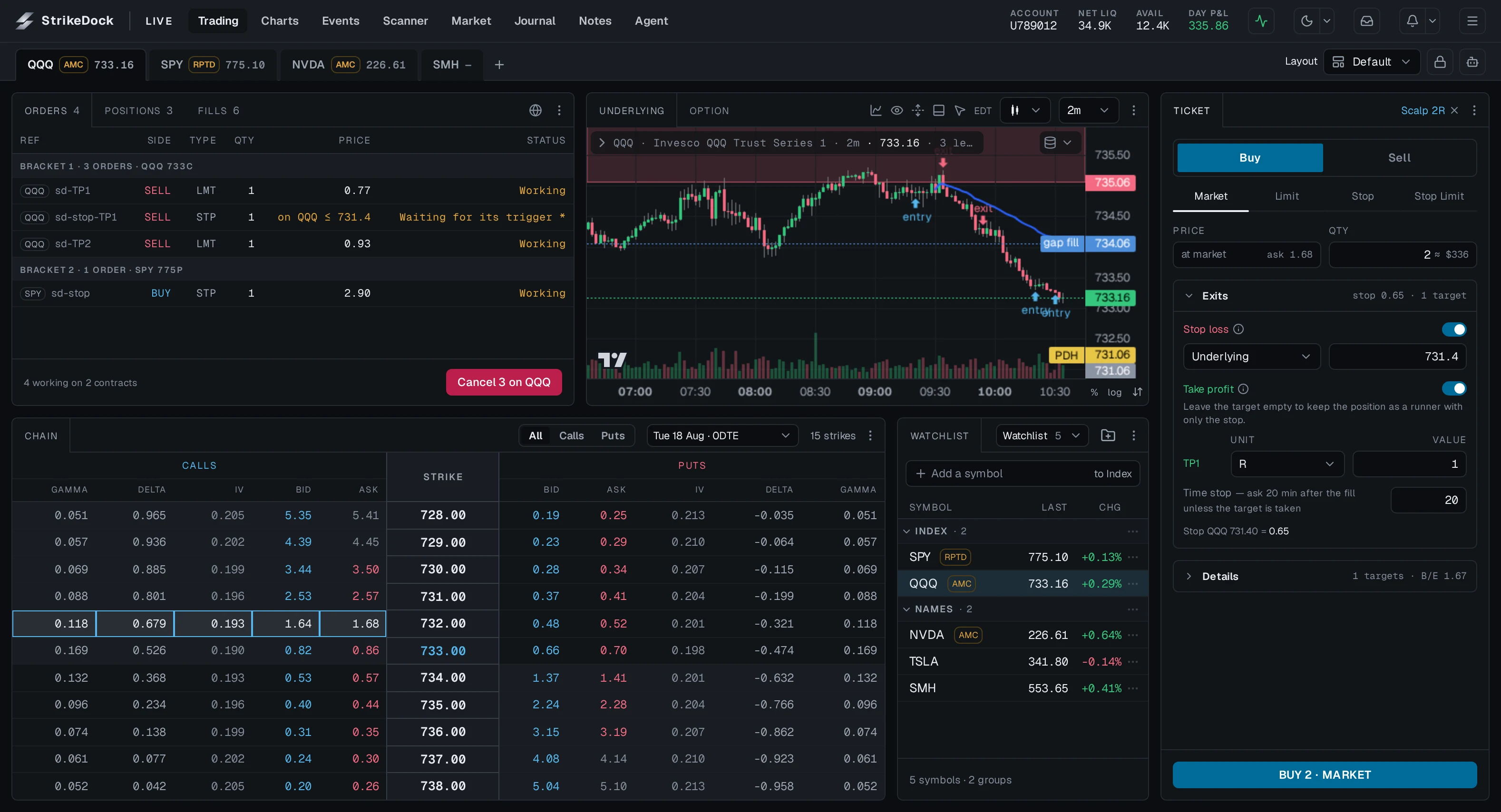
Trade management
Set the exits.
Plan what happens next.
Drag stops and take-profit levels on the chart. Build a plan for scaling out, moving to break-even and managing what remains, with the underlying and your option in view.
The plan,
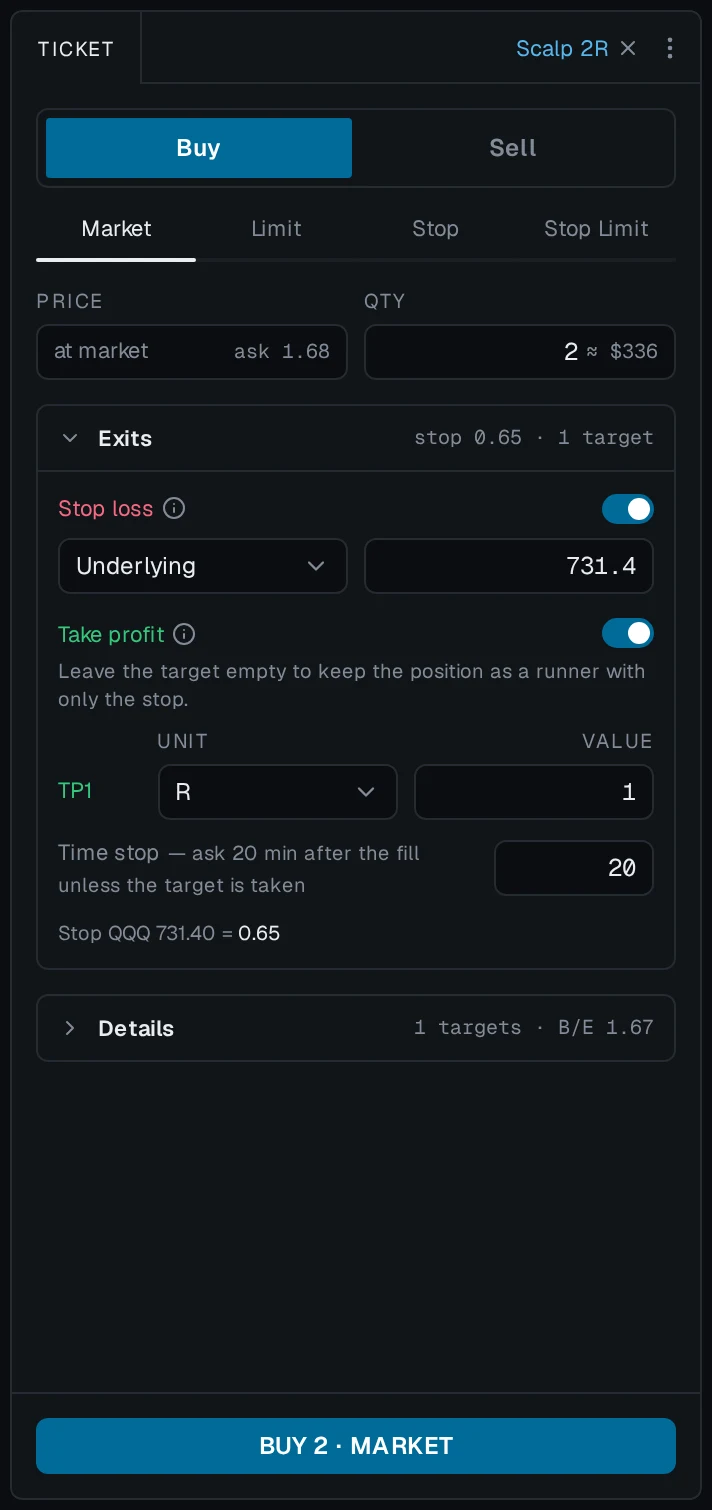
in the ticket
Define your stop in underlying-price terms, so your chart thesis stays connected to the option you hold. Then give each target a next step. Point at a part of the ticket to see what it is; its sides, types and folds work as they do in the app.
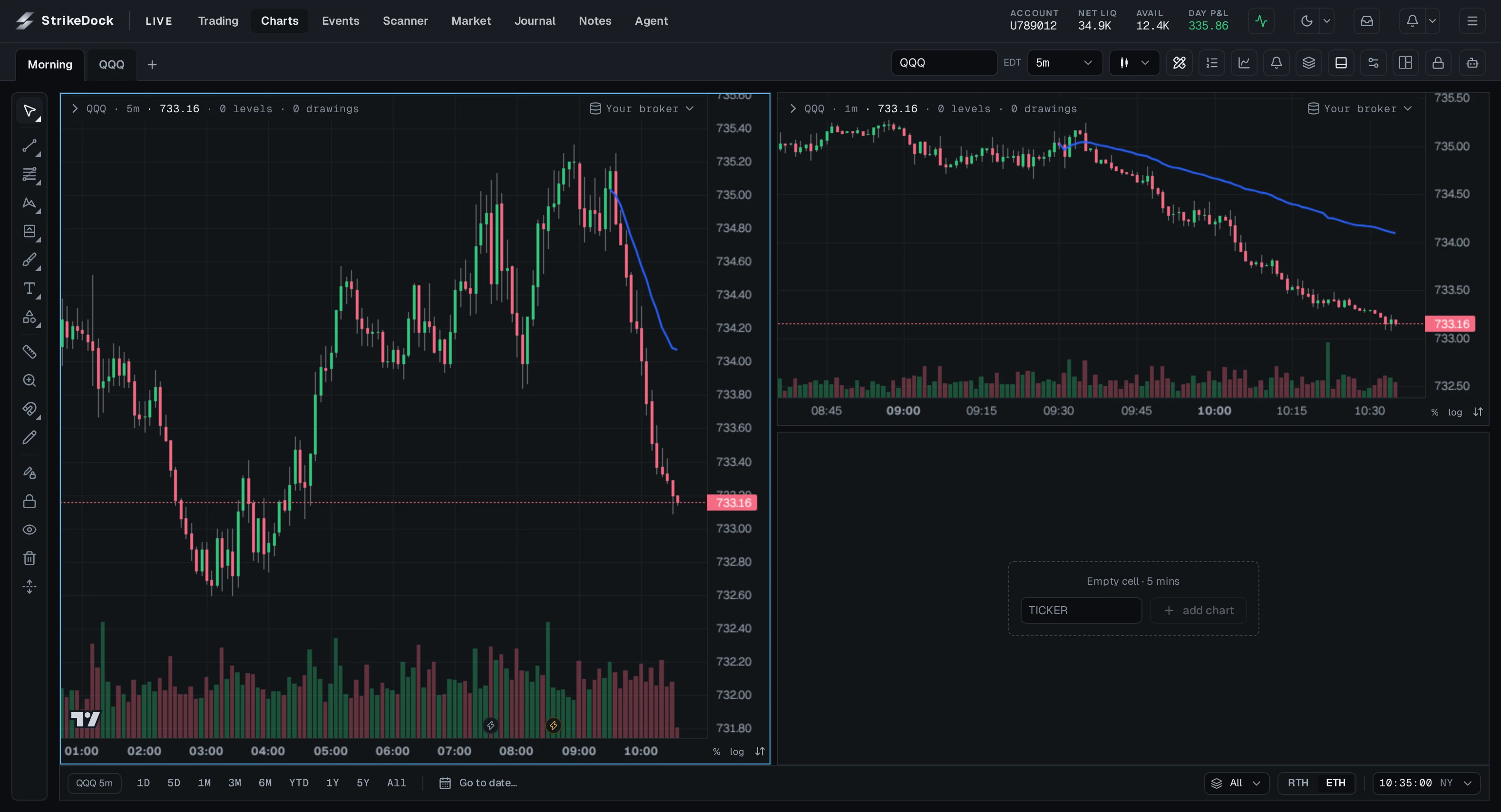
Plan on the chart
Entry, stop and targets appear as labelled lines on the contract chart.
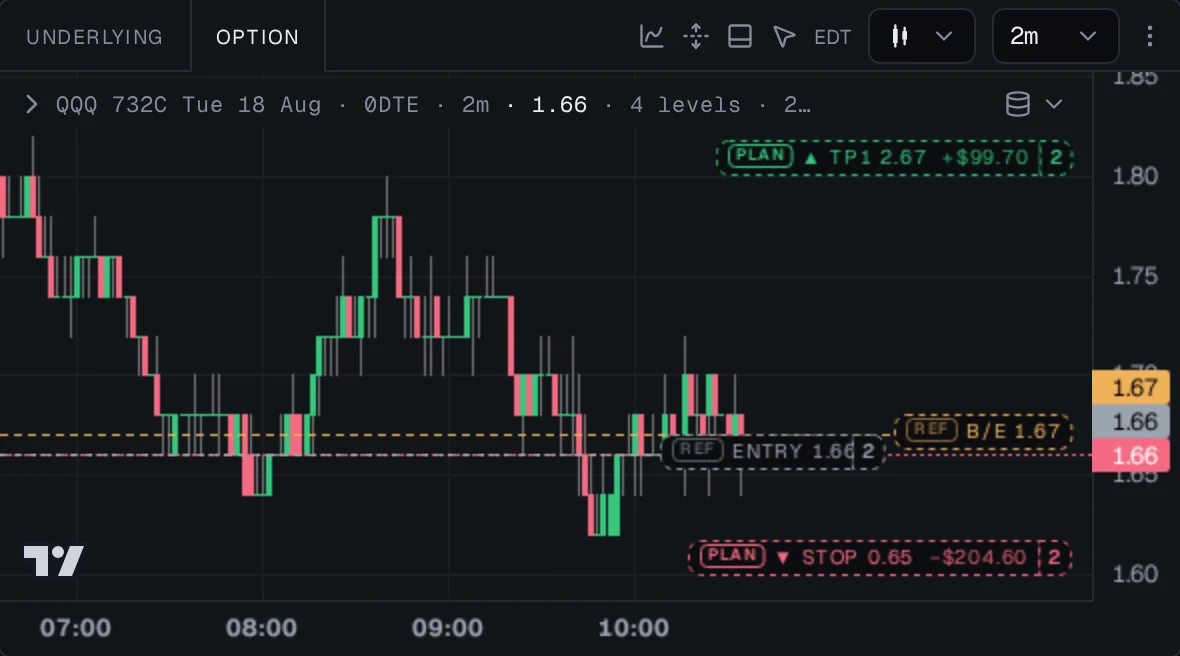
A plan you haven’t placed
- Dragging one of its lines edits the plan.
An order at the broker
- Dragging its line amends that order.
Exits stay
with your broker
Submitted exit orders are held and managed by the broker, rather than watched locally by StrikeDock. Closing the app does not move those orders back into the workspace.
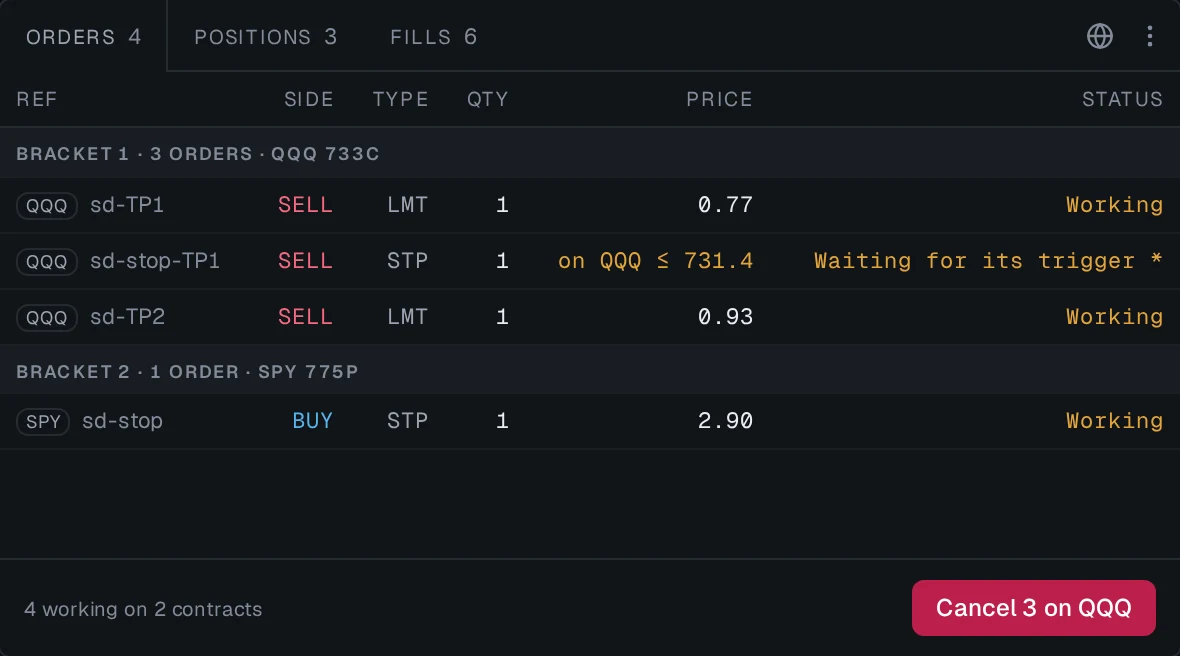
A plan on the chart is not an accepted order. Check the broker’s acknowledgement and order status.
Keep the app connected for live updates and to submit changes.
Rehearse before
it matters
Training is a separate simulated workspace with its own positions and journal. Practise the controls there.
In Training
- Its own positions.
- Its own journal.
- The same controls.
Not in Training
- Live-market execution: simulated fills don’t represent it.