Your agent
Put your agent
in the picture.
Bring the agent you already use into your trading workspace. Give it the context and tools to help you prepare, customise your charts and reflect on a trade.
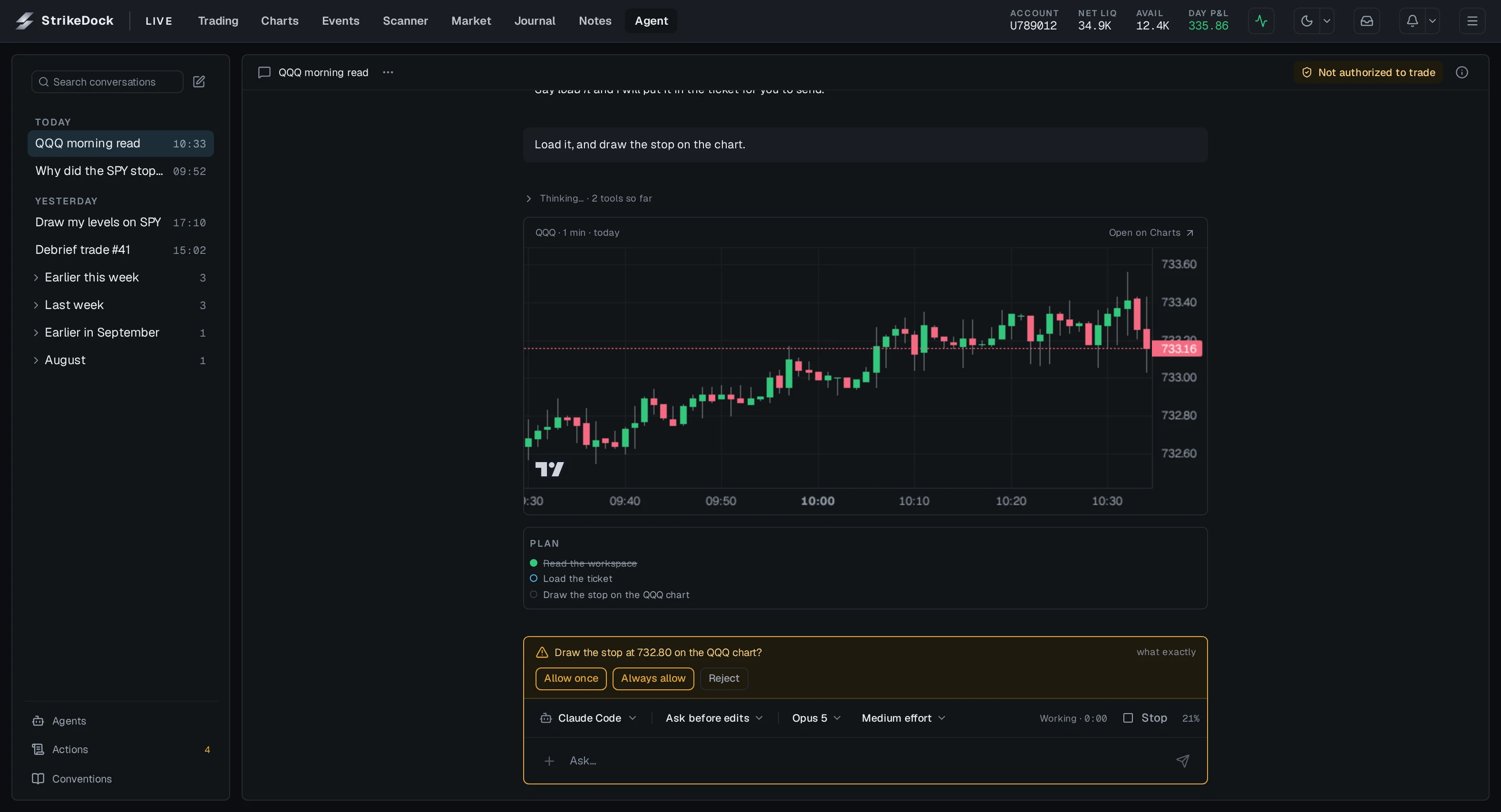
The Agent page
Your conversations, and the agent working in your workspace: what it read, its plan, and where it asks before it acts. Point at a part to see what it is.
Anything you can do,
it can do
Almost everything in StrikeDock is an MCP tool for your agent and a command for your terminal. What touches your money, your account or your limits stays with you.
mcp · layout_create
$ strikedock layout create Momentum NVDA AMD SMCI --timeframe 15m

mcp · watchlist_add
$ strikedock watch add NVDA --list Later

mcp · draw
$ strikedock draw hline SPY 734.5 --label "S1"

mcp · alert_add
$ strikedock alert add QQQ 718.40 --note "Yesterday’s high"

mcp · scanner_run
$ strikedock scanner --run

mcp · journal_summary
$ strikedock journal summary --since 2026-11-01

mcp · place
$ strikedock order place QQQ --limit 1.15
A preview: nothing is sent without your grant.
MCP tools for your agent
Over 200 tools, each described for the agent that reads them. An agent StrikeDock hosts through ACP works with the same tools.
A command for every tool
The strikedock CLI signs in to the app running on your computer. Use it in a terminal or from your own scripts.
The same checks either way
A command asks the app what its tool asks, so your grants, approvals and limits hold whichever way in.
- Charts and drawings
- Indicator scripts and plugins
- Layouts, windows and tabs
- Watchlists and the scanner
- Alerts, events and morning prep
- The journal and debriefs
- Notes and settings
- Orders, from a preview
It reads;
you decide
A connected agent can read the workspace. What changes your money or your connection waits for you.
Reads without asking
- Your positions
- The journal
- Charts
- Settings
Only with your grant
- Placing an order
- Changing your broker connection
- Your saved secrets
It shows you,
not just tells you
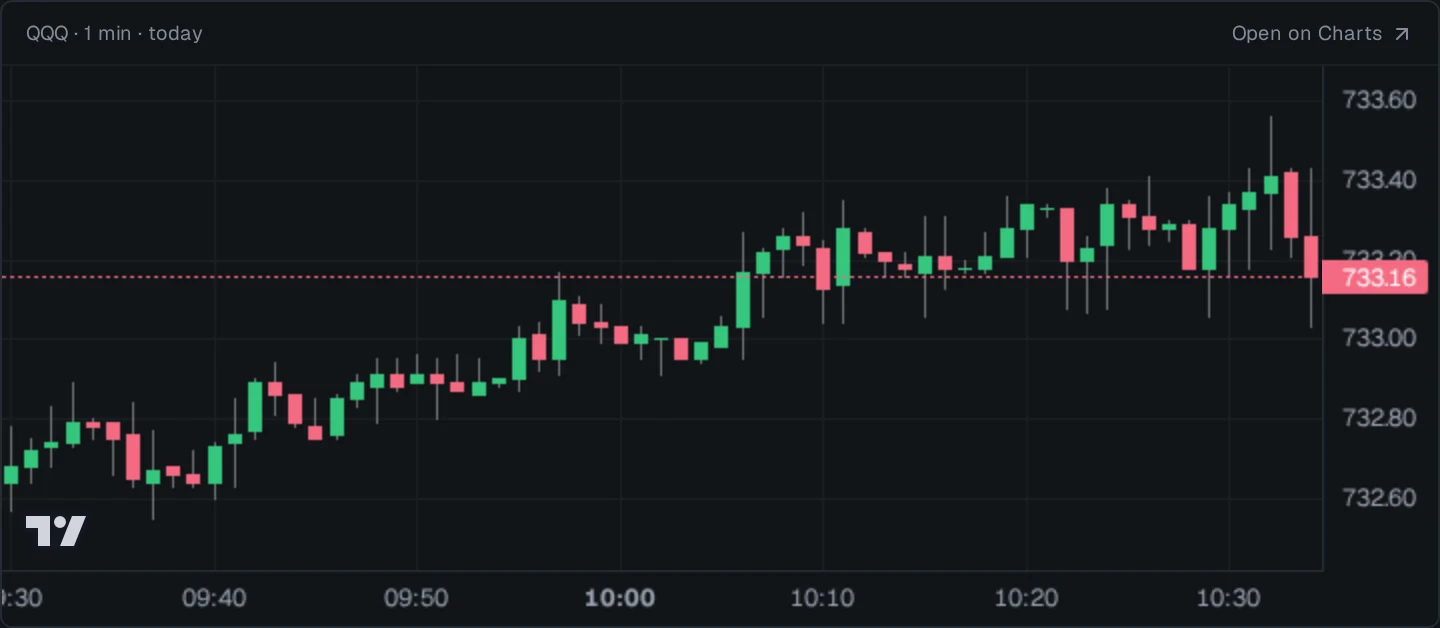
Ask for a chart, the chain or your trades, and the agent shows it in the conversation as a card. StrikeDock draws each card from your own data; the agent only names what to show, never the figures.
- 01
A chart, today’s or a past day’s
- 02
The chain and a position
- 03
Your trades, equity curve and journal figures
- 04
The calendar and a saved screen
Orders need
your grant
Order tools show a preview by default. An agent can send an order only after you authorize its connection, and it can’t authorize itself.
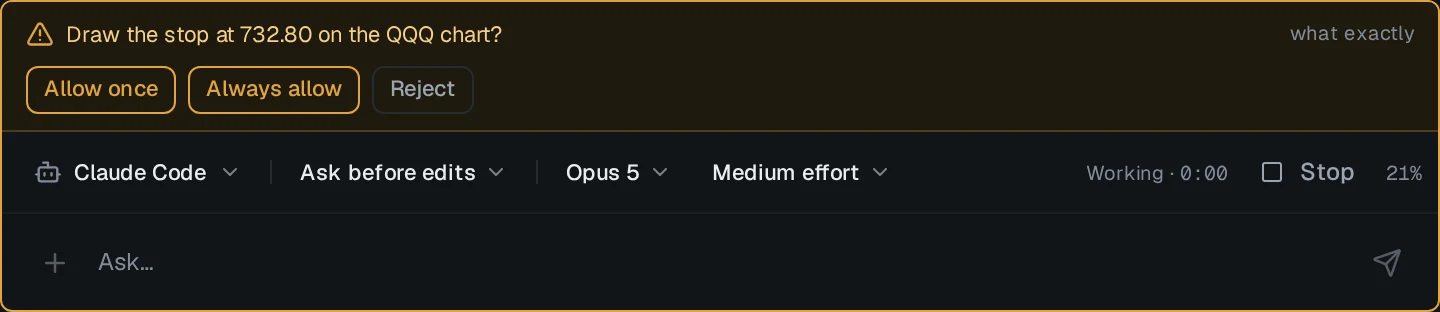
- 01
One connection, account and mode
- 02
A budget
- 03
Approve each order, with two minutes to answer, or let it work within the budget
- 04
It ends at the New York day roll
Your limits
still apply
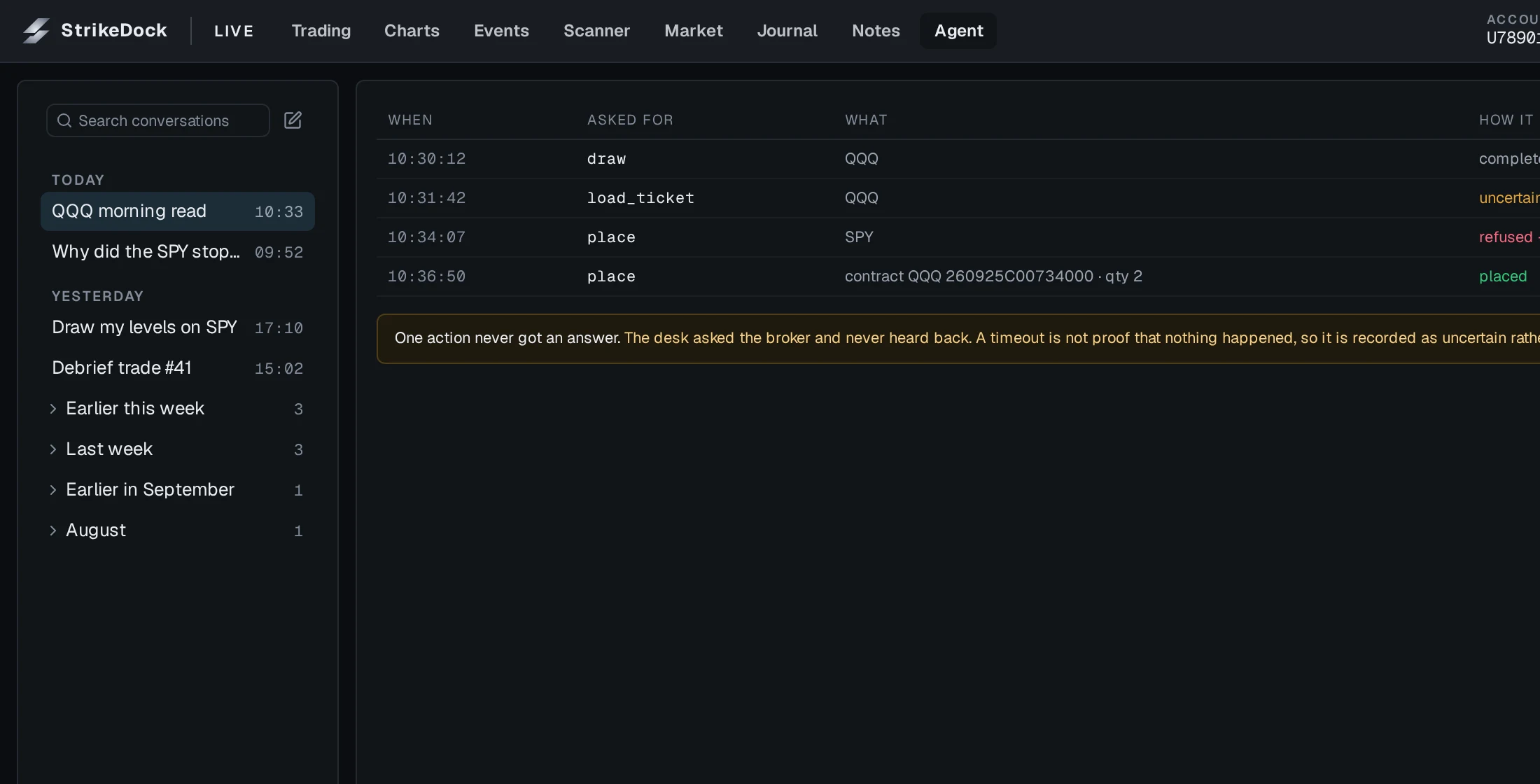
Every agent order is recorded before the broker is asked. Your read-only setting, the live-trading switch, size and notional limits and the margin check all still apply.
THINGS TO ASK YOUR AGENT
“Put these levels on my charts.”
Turn your market notes into levels and zones you can work with.
“Prepare this trade for me to review.”
Bring the contract, stop and targets into the ticket as a proposal.
“Walk me through this trade.”
Debrief with the trade in context. Review the proposed note before saving it.
Your agent, your provider
In development: these sources, and what each allows, may change before launch.
No AI service of ours
Your agent is a program you choose and run.
Its provider
Sees what the agent reads from your workspace.
How it connects
Supported agents connect through ACP. MCP and the CLI reach the same tools.