Your trading workspace In development

Your trading process.
All in one place.

Bring your charts, trade plans and journal together. One workspace for the way you trade, growing across markets and providers.
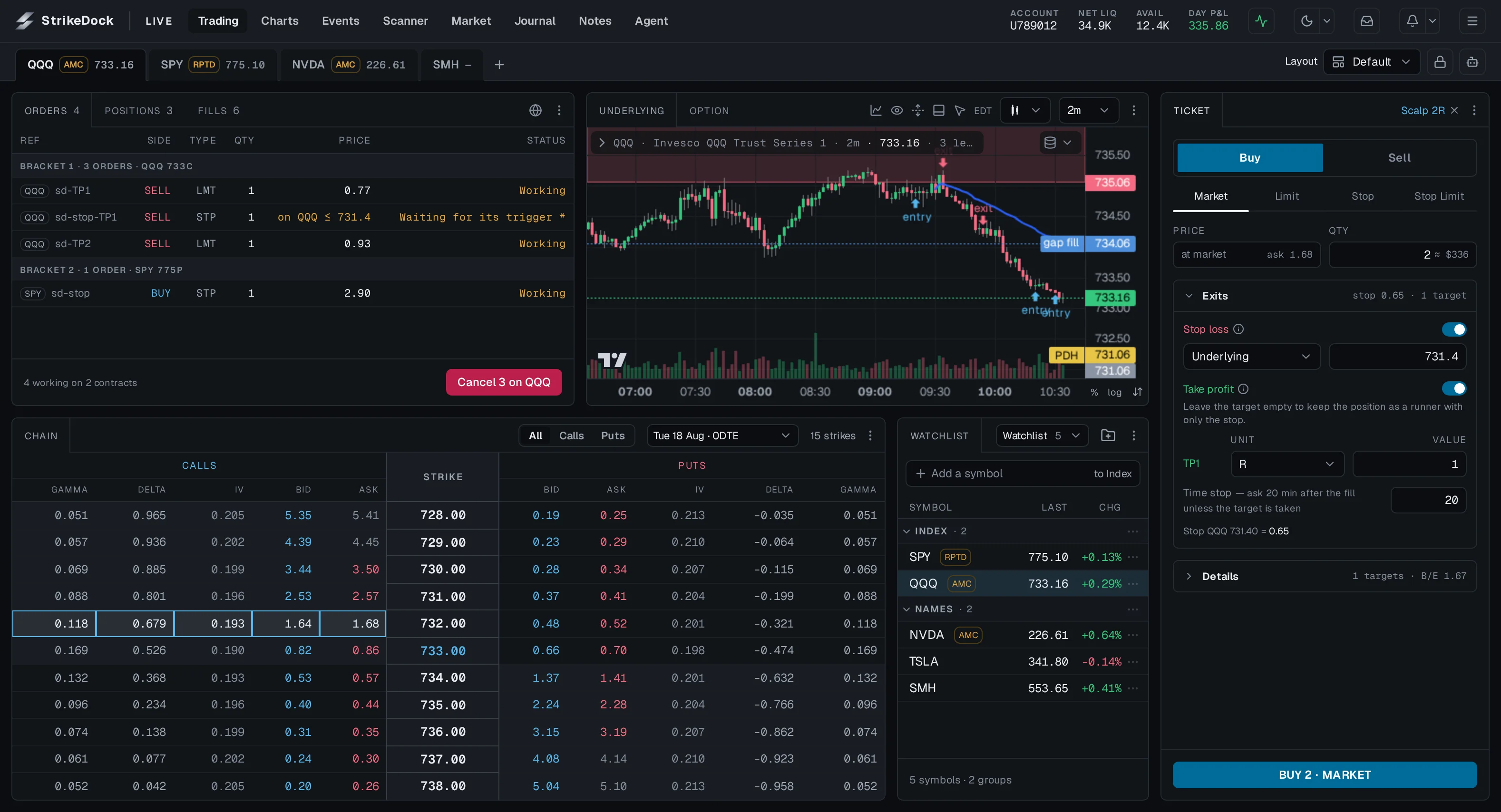
StrikeDock trading desk showing working bracket orders, a QQQ chart with fills, the options chain, watchlist and order ticket. Synthetic demonstration data.
Click around and get a feel for it. The app does much more.Synthetic data: tickers, prices, dates and figures are examples
Your layoutYour exit planYour trading journal

Keep the whole trade in context.
From the first idea to the final review.

01 / PREPARE

Find your focus.

Scan the market, check the calendar and mark your levels. Keep the context around the names you trade.

02 / TRADE

Give the plan a place.

Keep the underlying and option in view. Set your stops, targets and what happens as the trade unfolds.

03 / REVIEW

Pick up where you left off.

Your fills flow into your journal. Return to the chart, add your reasoning and debrief the decisions.

Available in the current build

Options, connected.

Work with options through your broker: charts, the chain, visual exit plans and a journal that keeps the record.

Current requirements

In development

More markets. More connections.

Stocks, futures, forex and more providers are part of StrikeDock’s direction. Support will expand as those integrations are ready.

Where we’re heading

A workspace that fits

Make room for
the way you trade.

Arrange your workspace and keep a layout for each window. Build your own panels, bring in your own data and write your own indicators, or ask your agent to.

More about the workspace
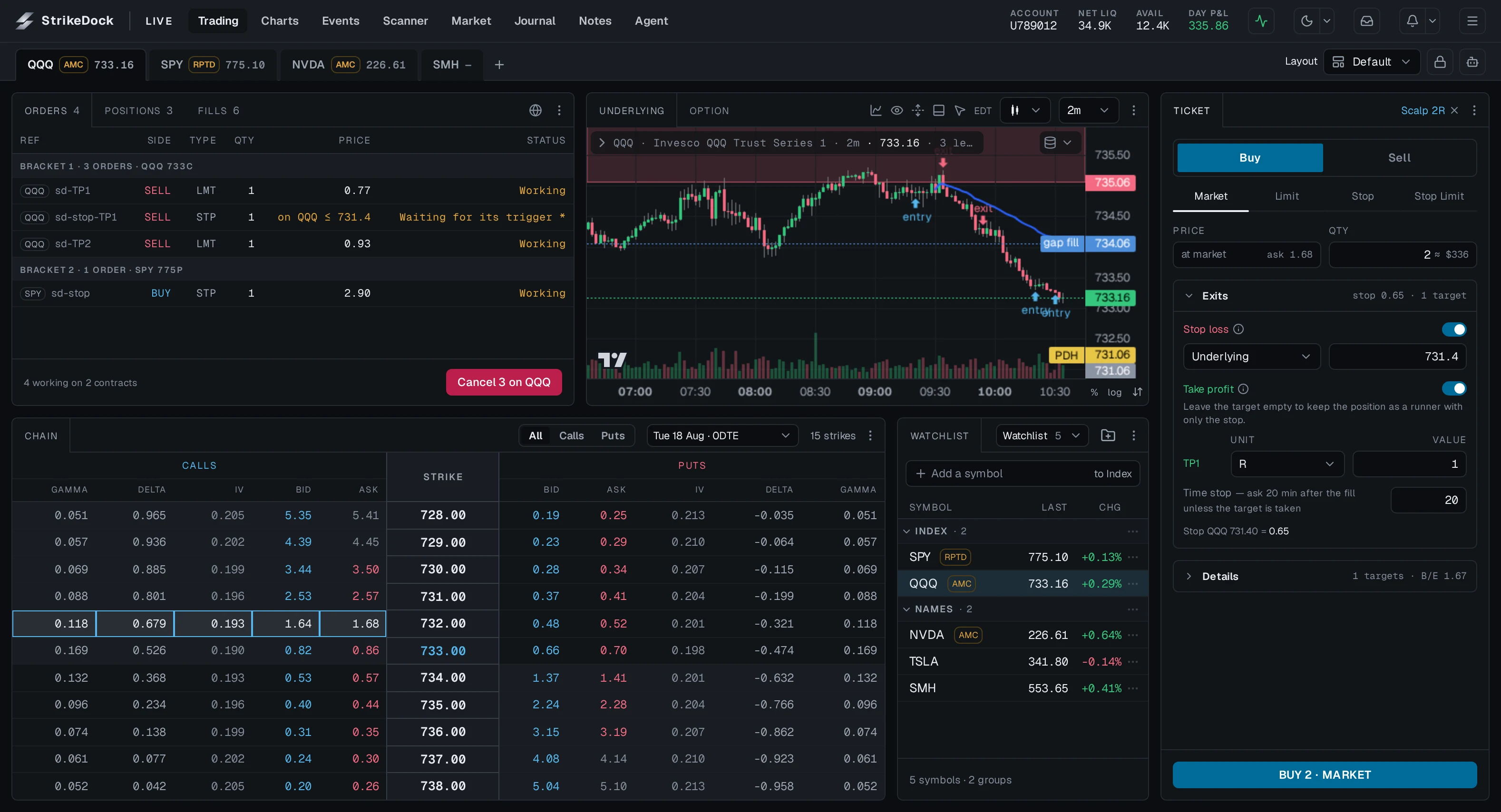
StrikeDock Trading page: working bracket orders, the QQQ chart, the options chain, watchlist and ticket. Synthetic demonstration data.

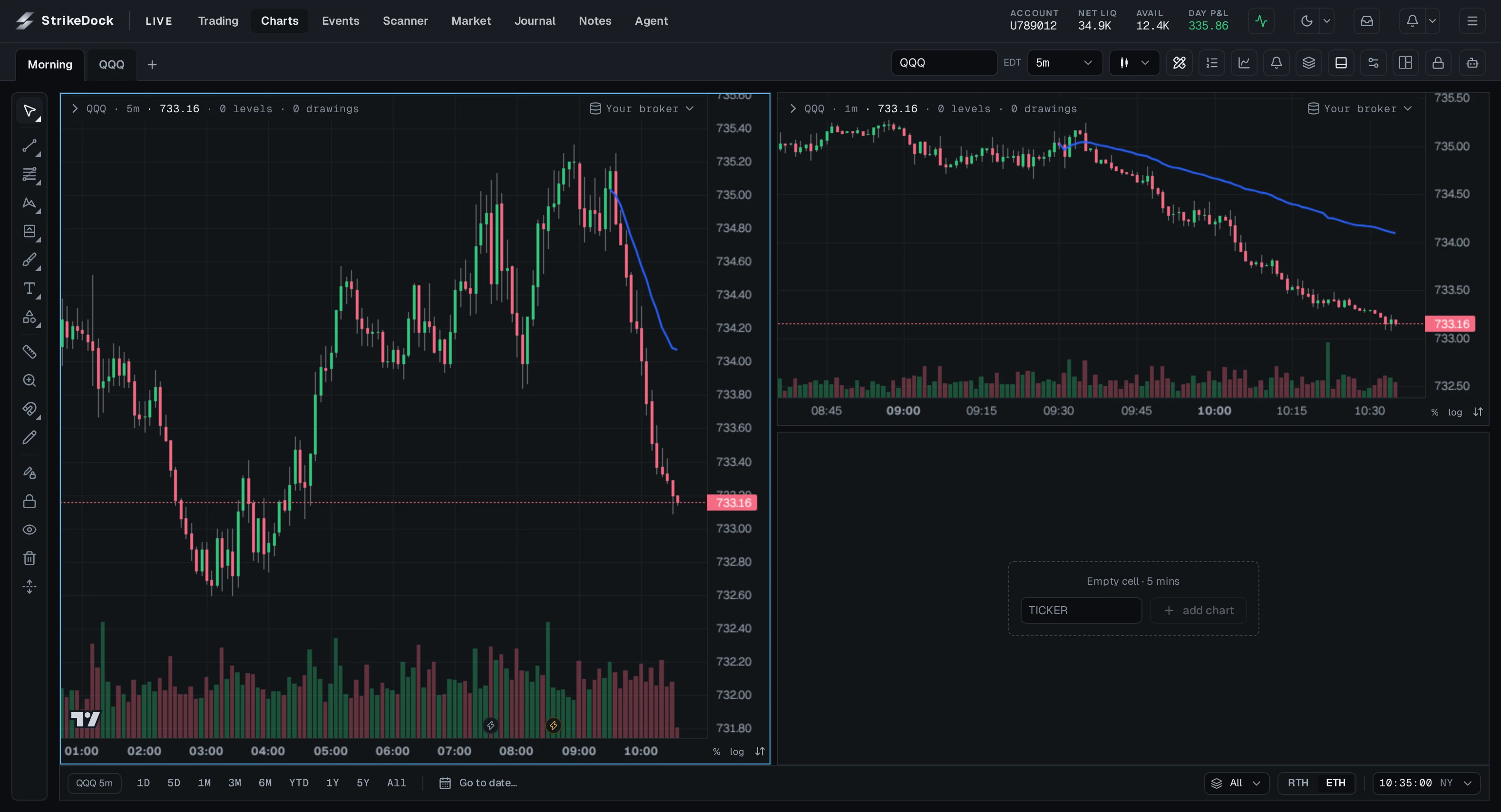
Your charts. Your view of the market.

StrikeDock Charts page: a layout of QQQ charts with drawing tools, volume and the session shading. Synthetic demonstration data.
The workspace and your charts, in context.Synthetic demonstration data · Development build

A layout for each window.

Add, remove, move, resize and stack panels, and keep an arrangement for each window size.

Build on it.

Panels of your own, data from sources you choose and indicators you write, each running only with what you allow.

Visual trade management

Set the exits.
Plan what happens next.

Drag stops and take-profit levels on the chart. Build a plan for scaling out, moving to break-even and managing what remains—with the underlying and your option in view.

More about trade management
StrikeDock Charts page: a layout of QQQ charts with drawing tools, volume and the session shading. Synthetic demonstration data.

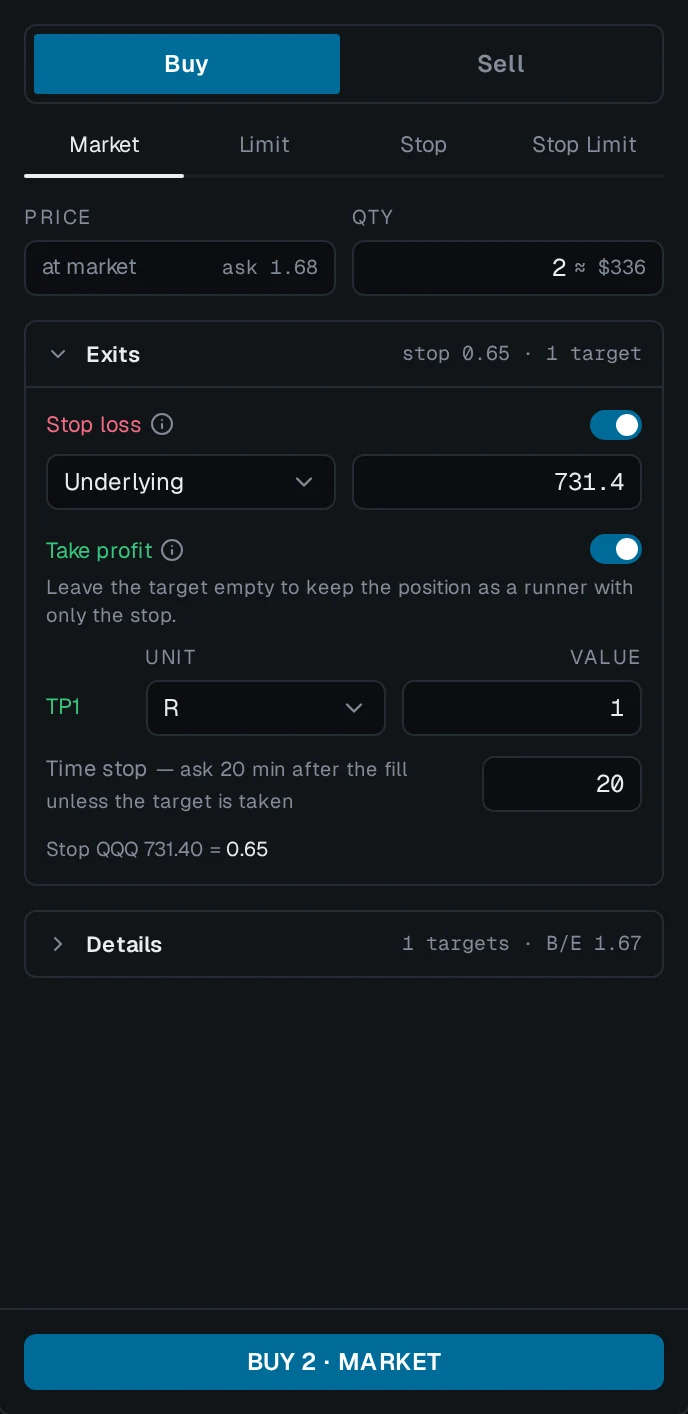
Plan the exits

The order ticket with its exits open: a stop on the underlying and a target, resting at the broker. Synthetic demonstration data.
The chart, the contract, the plan.Synthetic demonstration data · Development build

Use the levels you actually trade.

Define your stop in underlying-price terms. Keep your chart thesis connected to the option contract you hold.

Give each target a next step.

Take a partial at the first target. Move the remaining stop to break-even. Trail the rest. Define the sequence in your plan.

Journaling, built in

Your trades arrive.
You bring the reflection.

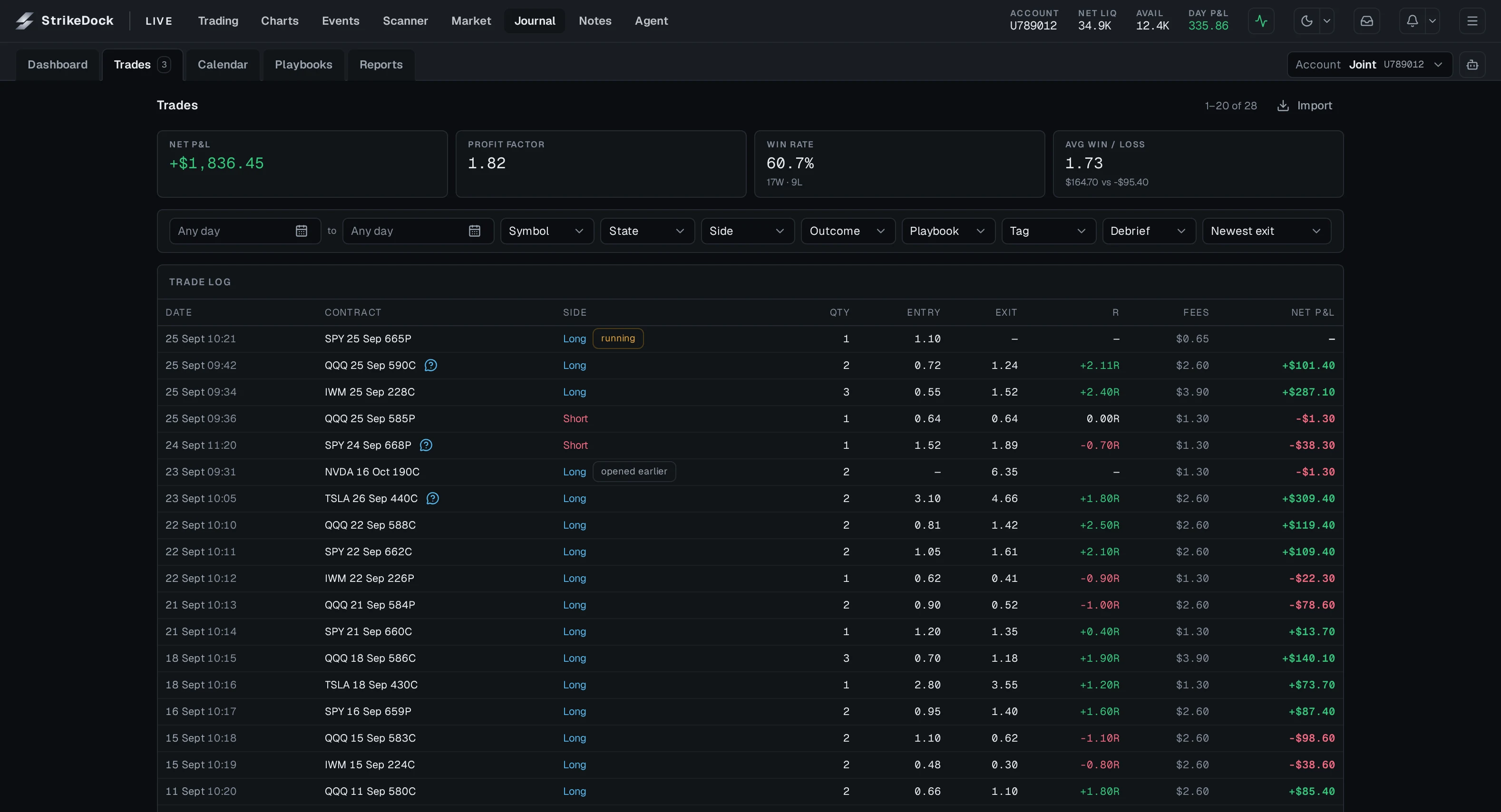
Fills flow directly into your journal as you trade. Keep the execution record, chart captures and your notes together, ready for a closer look after the close.

More about the journal
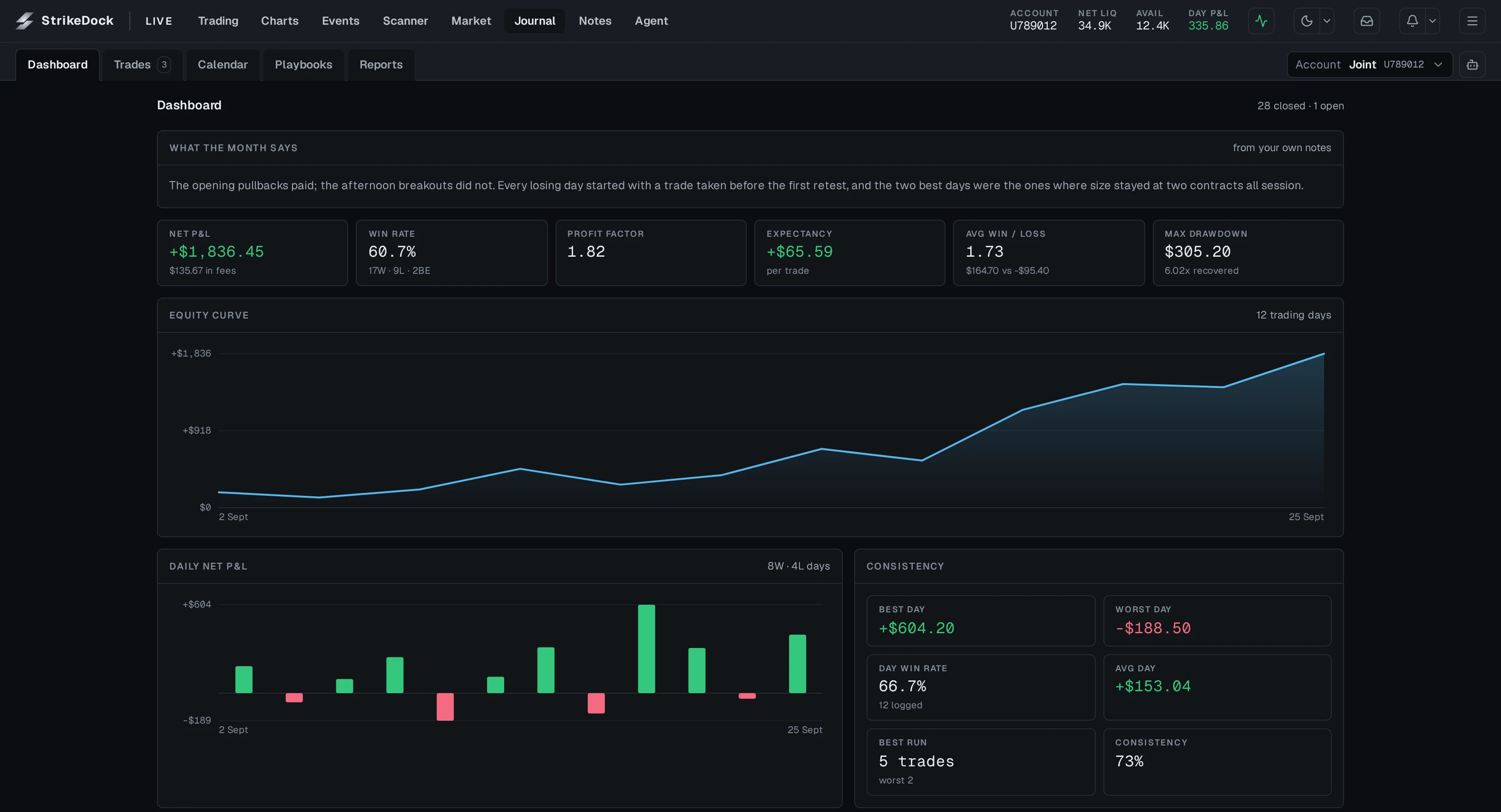
StrikeDock journal dashboard with synthetic sample metrics, an equity curve and daily results.

Go beyond the numbers

StrikeDock trade log with synthetic sample trades, fees, R multiples and net P&L.
From the record to the reasoning.Synthetic demonstration data · Development build

Part of your workspace. Part of your day.

Review fills, fees and trade history in the same workspace. Your journal is built into StrikeDock, with no separate journal subscription.

Bring the rest of your record.

Use an optional import of your broker’s statements to add trades made outside StrikeDock. Direct capture handles the trades coming through your connected workspace.

Your agent, inside your workspace

Put your agent
in the picture.

Bring the agent you already use into your trading workspace. Give it the context and tools to help you prepare, customise your charts and reflect on a trade.

More about your agent

THINGS TO ASK YOUR AGENT

“Put these levels on my charts.”

Turn your market notes into levels and zones you can work with.

“Prepare this trade for me to review.”

Bring the contract, stop and targets into the ticket as a proposal.

“Walk me through this trade.”

Debrief with the trade in context. Review the proposed note before saving it.

Make your charts your own.

Work with your agent on custom indicators, then use them in your chart layouts.

Connect the tools you use.

Supported agents connect through ACP. Almost everything you do in StrikeDock is also an MCP tool for your agent and a command for your terminal.

Market scanner

Find what deserves a look.

Scan for names worth your attention, then bring them into your charting and trading workflow.

Events calendar

Keep the day's events in view.

See upcoming releases and events in your workspace. Keep the calendar close to the decisions it could affect.

A few things to know

Before you
get started.

When can I download StrikeDock?
StrikeDock is in development. Contact us about availability or follow our development notes. We haven't announced a release date yet.
Which platforms is StrikeDock being built for?
Linux packages are built first, with macOS and Windows planned. We’ll share tested system requirements with each release.
Which markets does StrikeDock support?
The current build supports options trading through your broker. Stocks, futures, forex and more broker and data-provider connections are in development. We’ll publish availability as each integration is ready.
Who is StrikeDock built for?
Self-directed traders who want preparation, execution and review in one place. Charts, visual trade plans and review come together around your own decisions.
Do I need an agent to use StrikeDock?
No. You can use the trading workspace, charts and journal yourself. Connecting a supported agent adds another way to work with the workspace.
Can I work with it from a terminal or a script?
Yes. The StrikeDock CLI has a command for almost everything you do in the app, the same things an agent reaches through MCP. Your grants and limits apply either way.
Does StrikeDock choose trades for me?
You choose the contract, direction, size and trading plan. This page presents tools for working with your own decisions, not trade recommendations or a promise of results.
Does the app need to stay running?
No. Orders accepted by your broker are held and managed there; StrikeDock does not hold exits locally. You need the app running and connected to see live updates or send changes. A plan in the workspace is not confirmation that the broker has accepted an order.
Is Training connected to my live positions?
Training is a separate simulated environment with its own positions and journal. It is useful for learning the controls and rehearsing workflows. Simulated fills do not represent live-market execution.
Are these the actual product?
Yes. The screens on this site are StrikeDock’s real interface, as the app draws it, using synthetic demonstration data. Account figures, trades and results shown are examples, not customer performance.
StrikeDock

In development

Your trading workspace
is taking shape.

Tell us which markets, providers and platform you use. Help shape what comes next, or follow along in our development notes.

Choose your platform for your enquiry